
Optimizing
After alignment the user chooses how many frames will be used for every alignpoint. This choice will limit all processing during optimizing/stacking and wavelets. If you choose too little frames you need to start all over again. Choosing too many (for instance all) will cost more optimizing/stacking time but will allow you to find a good stacksize.
Simply optimizing
On the optimizer page we are presented with several choices. The most important for basic optimizing are the "optimizer settings". Below we describe the fun
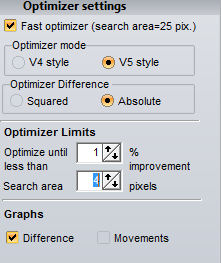 ctionality of the most used settings.
- Fast optimizer: this is the successor to the single-run optimizer from V4. But its a lot better and can be used instead of the older method. The older method tries finding the best alignment position in a grid of possible positions set by the user -search area. If the user sets a search area of 4 that means the optimizer will be testing a grid of positions 4 positions shifted in any directions. This means an 9x9 grid of positions gets tested for each alignpoint. The Fast optimizer does not use the setting of the search area but searches in a "clever" way. Therefore we can allow it to search in larger area, the search area for this method is 51x51 positions but it can search those a lot faster. If you dont trust the result, unchecking the fast optimizer will ensure you will find the best alignment shift but not fast !
-Optimizer style : for backward compatibility we have left V4style optimizing available. V4style means that every alignpoint gets treated separately. So for 50 alignpoints the optimizer will run 50 rounds and every frame will be loaded 50 times. In V5style (the new default) all alignpoints are optimized at the same moment. You will be able to see the aligned area for up to 3 alignpoints during optimizing.
-Optiimizer difference
The optimizer tries to find the best shift by minimizing the difference between the aligned area on the frame that is getting processed and the referenceframe. The actual difference can be calculated in 2 ways, squared or absolute. When using squared the intensity difference between 2 pixels is squared and summed for the alignmentarea. When using absolute the difference between 2 pixels is calculated but if the difference is negative it will be treated as a positive difference, again all the differences are summed for the alignmentarea. In V4 we only had squared available, in V5 absolute can also be used. Theoretically there is no clear sign of either method being the "absolute" best. If large scale user testing will point in a certain direction this website will be mentioning it.
Optimizer limits
These are mainly valid when not using the fast optimizer, the optimize-until setting is a threshold. If at the end of the optimizer-run the total sum of differences (all frames) has descreased more than the set value (in %) another run of the optimizer will try to optimize even further. The other control was allready explained under "fast optimizer".
Graphs
These are the optional graphs the user can see when optimizing.
Usage
When the user has set the optimizer choices (or left the defaults on) you can either press "optimize & stack" or "optimize". Using the last choice will keep you on the optimizer-page, you can change settings and try again or go manually to the stackingpage by clicking on the stack-tab (green after optimizing). The optimize and stack option will start the optimizer but will also proceed directly to the stackingpage, stack all the frames and you will be ending at the wavelets.
Create Reference
Sometimes the user wants to optimize using a much improved referenceframe, especially when the individual images show loads of noise or distortion this can be wise. The Create Reference procedure can make a good referenceframe. Often only a few frames (10s) are needed to create a good referenceframe. The user simply sets the number of frames that need to be stacked per alignpoint. This is different compared to V4, in V4 the user would set the number of frames to use for the referenceframe, if the user would select 50 frames that would always be the best 50 frames of alignpoint #1. In V5 setting 50 frames will make Registax select the 50 best frames for each alignpoint, the total amount of frames will therefore be larger than 50. WHen you use a lot of alignpoints be aware that this might force you to use a lot of frames for the referenceframe. After setting the number of frames/alignpoint press Create. Then the procedure starts by launching the optimizer, after that it starts stacking the frames. After stacking the users ends up at the waveletspage. You can set the wavelets to increase the amount of details in the image, make sure that you are not increasing the amount of noise ! You can better have a slightly blurred referenceframe than a referenceframe with too much noise since that might "mislead" the alignment. After setting the wavelets or other settings press Continue. That will bring you back to the optimizer-page. You can now continue using the normal optimizer-procedure as described above.